
Memo+ lets you change the colours of a Flipnote when it plays on the RexiMemo website. You can use one palette throughout, or change it on particular frames. The drawing and the original PPM file stay as they are.
Memo+ was created by King Mayro.
You do not need to open the drawing editor or upload the Flipnote again. Open the Flipnote you have already shared and edit its Memo+ colours.
Which Flipnotes can use Memo+?
You can add Memo+ to your own PPM Flipnotes, including ones made on a DSi, in melonDS or in RexiMemo's Flipnote Editor, and ones brought over through a supported migration or Hatena recovery.
Memo+ is not available for KWZ/Flipnote Studio 3D uploads. Flipnotes made with Flipnote Encoder are excluded by default, though an administrator can allow Memo+ on an individual PPM. Administrators can also disable Memo+ for a particular Flipnote. Editor-made Flipnotes are supported, including those made with an RxFSID. You do not need Supporter+.
Open the Memo+ editor
- Log in and open one of your Flipnotes on the website.
- Choose Manage Flipnote.
- Choose Memo+ colours. You will see a player preview and a Colour changes section.
Choose your first palette
- Leave From frame set to 1 if you want the colours to apply from the beginning.
- Find the colour you want to replace: White, Black, Red or Blue.
- Change its dropdown from Original to Custom colour.
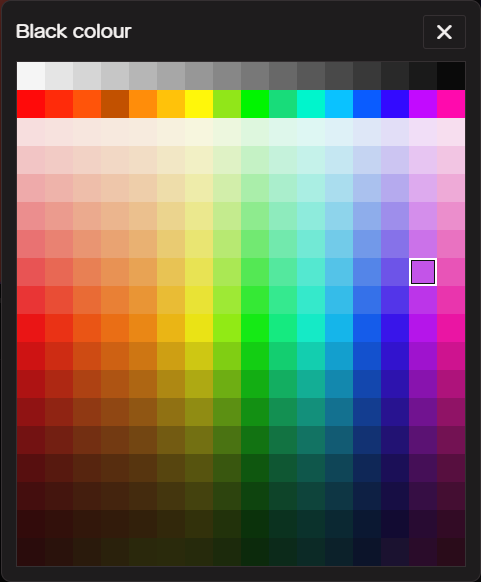
- Click the colour swatch or its hex value, then choose a colour from the palette.
- Check the preview. Repeat for any other colours you want to replace.
- Click Save colours and wait for Memo+ saved.
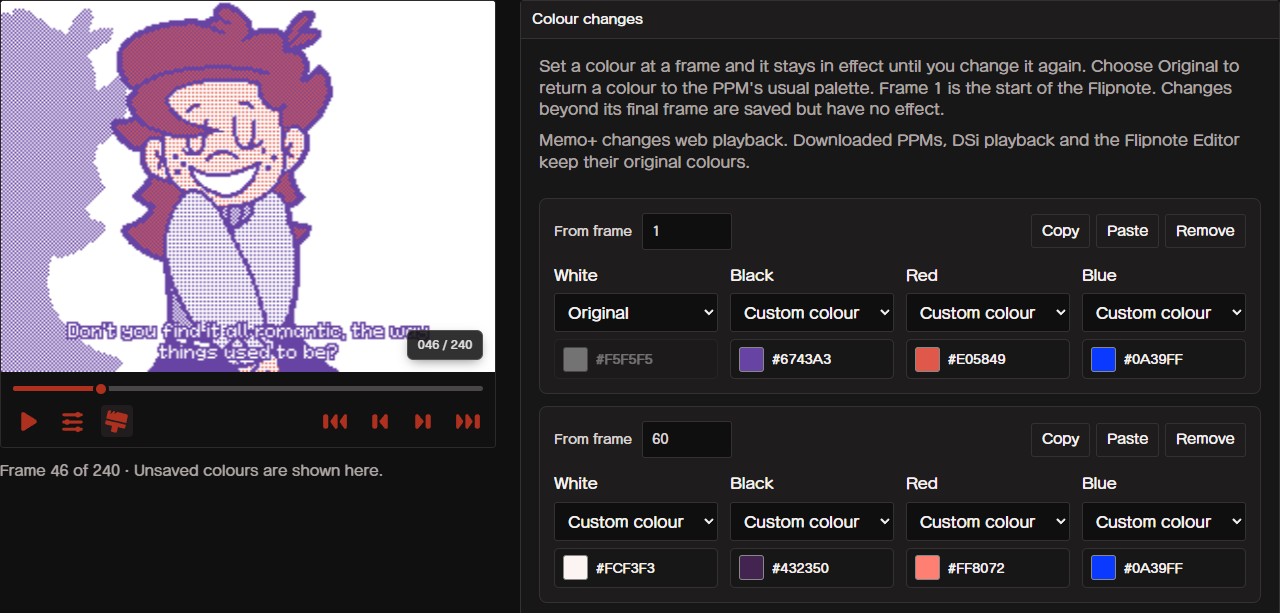
The four names refer to colours in the PPM, not to drawing layers. For example, replacing red changes every red pixel using that palette colour, including red on either layer. Memo+ cannot pick out one red object and leave another red object unchanged on the same frame.
The colour picker has 288 choices. Click a square to use it. You can also move between squares with the arrow keys and press Enter or Space to choose one.
Change colours part-way through
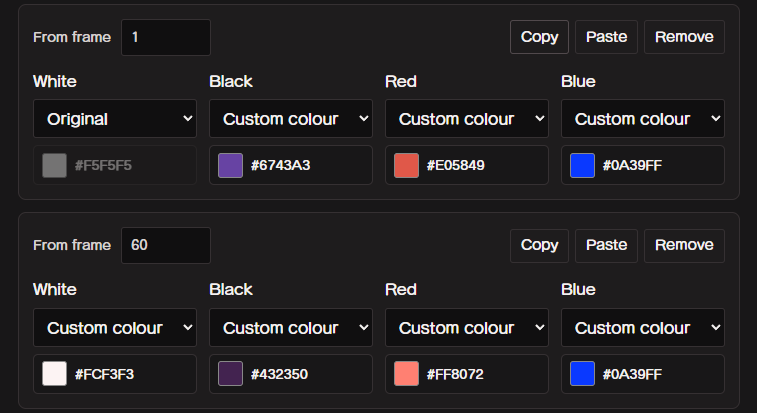
Click Add colour change to add another block. Set its From frame number to the first frame that should use the new colours. Frame numbers start at 1.
A new block starts with the palette already in effect at that frame. Adjust the colours you want to change. That palette then stays in effect until a later block changes it again.
For example, a block at frame 1 can turn red pixels orange. A second block at frame 20 can change those pixels to purple. Frames 1–19 will use orange; frame 20 onwards will use purple, unless you add another change.
Clicking or changing a From frame box pauses the preview and moves it to that frame. Use the player to check the transition before saving. Each block needs a different frame number. A change past the last frame of the Flipnote will not appear during playback.
Copy a palette to another block
Each block has Copy and Paste buttons.
- Click Copy on the block whose palette you want to reuse.
- Add another colour change, or find an existing one.
- Click Paste on that block.
- Set its From frame number if needed, then click Save colours.
Paste replaces all four colour settings in the destination block, including any set to Original. It leaves that block's frame number alone. The preview moves to the destination frame so you can check the result.
Paste becomes available once you have copied a palette. The copied palette is kept while this editor page is open; it is not placed on your computer's clipboard. To move a palette between Flipnotes or devices, use a Memo+ file instead.
Restore the original colours
To restore one colour from a particular frame onwards, change its dropdown back to Original in that block. Save your changes afterwards.
Remove deletes one colour-change block. The preceding palette will then continue until the next remaining change. Removing a block does not necessarily restore the original palette.
To clear Memo+ from the whole Flipnote, use Remove Memo+ in the Memo+ file section and confirm. This takes effect straight away. It does not delete the Flipnote.
Import or download a Memo+ file
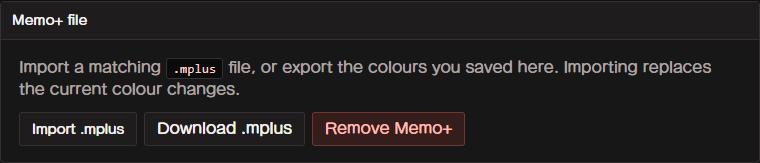
A .mplus file stores colour changes separately from the animation. It does not contain the Flipnote's drawings or sound.
To import one, choose Import .mplus and select a file from your device. The file must be no larger than 160 KB and should be made for the same Flipnote.
An import is saved immediately and the editor reloads. Download your existing .mplus file first if you want to keep a copy.
To download a palette, first click Save colours, then choose Download .mplus. The download contains your saved colours, so save any recent edits before downloading.
If you use another player or organiser that supports Memo+, keep the PPM and .mplus files together and give them the same base filename. For example, MyFlipnote.ppm and MyFlipnote.mplus.
Watch with or without Memo+
Saved Memo+ colours appear in supported website playback and Flipnote thumbnails. Viewers can turn the effect off without changing your saved palette:
- Flipnote Player: use the Memo+ paintbrush button beside the settings button. You can also open the options menu and choose Disable Memo+ or Enable Memo+, below True EQ.
- Legacy player: use the M+ button beside EQ.
On a watch page, the control appears when the Flipnote has a saved Memo+ palette. Turning it off restores the normal PPM colours for that player.
What stays unchanged?
Memo+ does not overwrite the original PPM. Its drawings, timing, sound, authorship and lock status are unchanged. Downloading the PPM still gives you its original colours. DSi playback and the Flipnote Editor also keep the original colours; opening the animation in the Editor does not import its Memo+ palette.
Check that your animation still makes sense without Memo+. Text that only becomes readable after recolouring, for example, will be difficult to read on a DSi.
If something does not look right
- The preview changed, but the watch page did not: click Save colours and wait for the saved message. Unsaved changes only appear in the editor preview.
- A colour change does nothing: check that the original colour is actually used on that frame and that From frame is within the Flipnote.
- The colours changed at the wrong point: frame 1 is the first frame, not frame 0. Click the frame box to check the position in the preview.
- You get a message about another window: another copy of the editor has saved a different palette. Reload to get the latest version before editing again.
- A file will not import: check that it is a valid
.mplusfile within the size limit. Renaming a PPM or another file to .mplus will not work.
If you still need help, contact RexiMemo support with the Flipnote link and the error message you see.